Moving and assessing MySQL application code to Postgres using Swordfish
Drive the Swordfish terminal UI through a full MySQL → Postgres assessment of a real PHP app — find the embedded SQL, read what breaks, export the plan.
Everybody treats a database migration like a database problem. Then they open the application repo, and the timeline quietly doubles.
I’ve watched that movie at more shops than I can count. The schema converts in an afternoon — ora2pg and friends have had that part solved for years. Then someone greps the codebase and finds the backtick-quoted queries, the AUTO_INCREMENT assumptions baked into a dozen models, an ENUM column that meant something to a developer who left in 2019. That’s where the weeks go.
So this walkthrough is the unglamorous step that actually saves the project: point Swordfish at a MySQL app, let it find every place the code touches the database, and read back what’s going to break before you change a line. We’ll do it entirely in the terminal UI — keyboard-driven, no mouse, happy to run over SSH on the box where the code already lives. The sample is mysql-sakila: a small PHP storefront on the MySQL Sakila schema, stuffed with the gotchas real apps actually ship.
Eight screens. The keys to press. What each one is trying to tell you.
Launching the TUI
Local backend (most common)
If no Swordfish backend is running, the TUI starts one for you on loopback:
# Option A — convenience wrapper
scripts/swordfish-tui

# Option B — direct Python module
cd backend && python -m app.tui
It spins up a uvicorn API process and a background worker, waits up to 30 seconds for /api/health to answer, then drops you on the dashboard.
Remote backend
Already have a backend running somewhere? Point at it:
python -m app.tui --url http://swordfish.example.com:8009 --token <admin-token>SWORDFISH_API_URL and SWORDFISH_ADMIN_TOKEN do the same job as --url / --token if you’d rather use env vars.
Step 1 — Dashboard
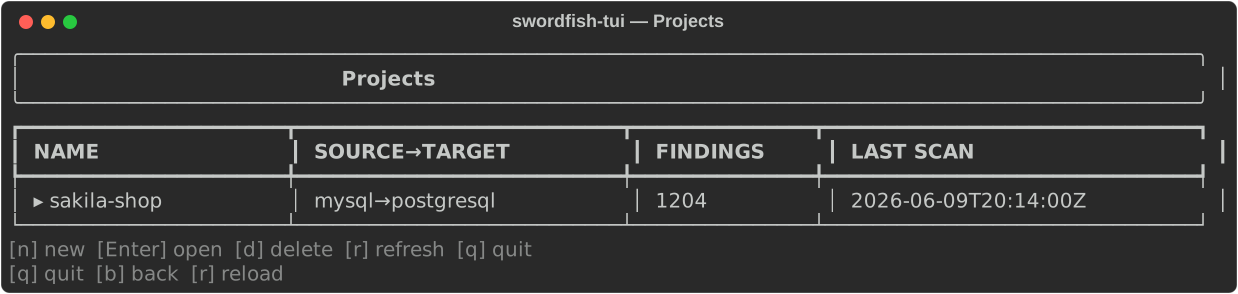
You land on the Projects dashboard: every project with its source/target pair, finding count, and last scan time. One screen, the whole portfolio.
What you see: the sakila-shop project already scanned — 1,204 findings, last run 2026-06-09 20:14 UTC.
| Key | Action |
|---|---|
↑ / ↓ | Move between projects |
n | Create a new project (opens a wizard) |
Enter | Open the selected project’s findings |
d | Delete the selected project |
r | Refresh the list |
q | Quit |
We’re building this one from scratch, so press n.
Step 2 — New Project Wizard
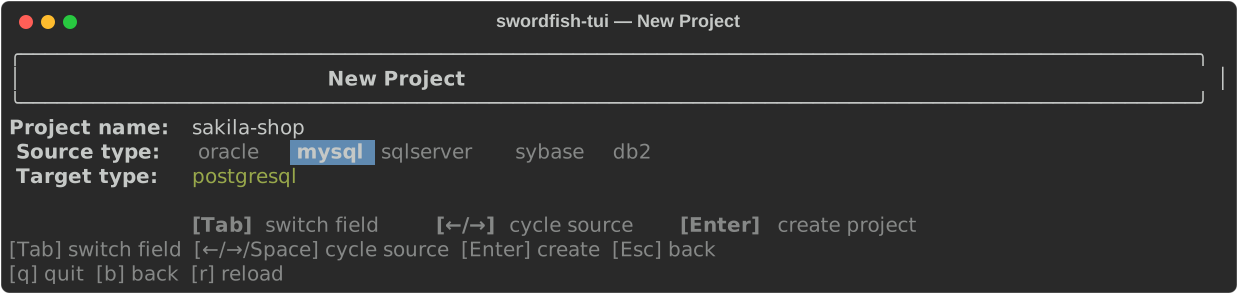
The wizard wants two things: a name and a source database type. The target is always PostgreSQL, so there’s nothing to choose there.
What you see: the name field pre-filled with sakila-shop, source type cycled to mysql (highlighted in blue).
| Key | Action |
|---|---|
Tab | Switch focus between Name and Source |
← / → | Cycle source types (oracle, mysql, sqlserver, sybase, db2) |
| Any character | Append to the name field when it has focus |
Backspace | Delete the last character |
Enter | Create the project, advance to Load Source |
Esc | Back to the dashboard |
Type sakila-shop, Tab to Source, → once to land on mysql, then Enter.
Step 3 — Load Source
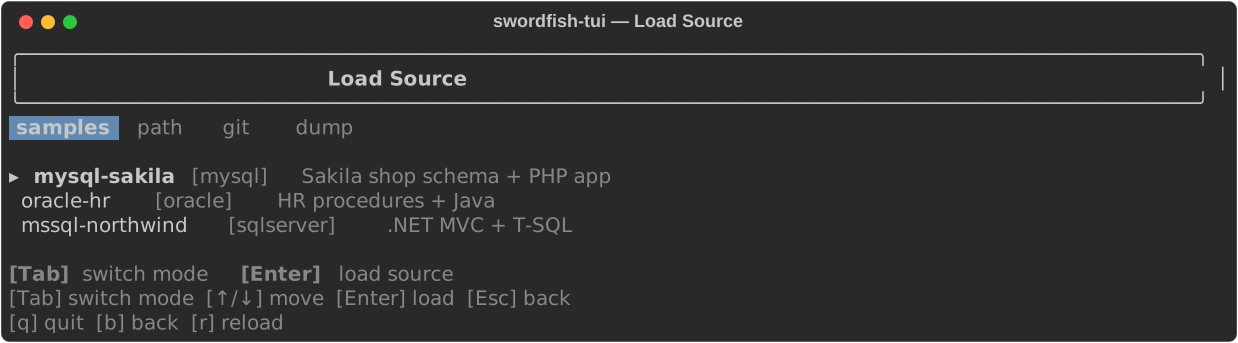
Now Swordfish asks where the code and schema actually live. Four ways in: samples (built-in test apps), path (a local directory), git (clone a repo), and dump (a SQL dump file). Most real assessments start with path or git; we’ll use a sample so you can follow along without cloning anything.
What you see: the samples tab is active, cursor on mysql-sakila — the Sakila schema with a PHP application layer on top.
| Key | Action |
|---|---|
Tab | Cycle modes: samples → path → git → dump |
↑ / ↓ | Move in the samples list |
Enter | Load the source, kick off indexing, go to Operations |
Esc | Go back |
Press Enter on mysql-sakila. Indexing starts.
Step 4 — Operations
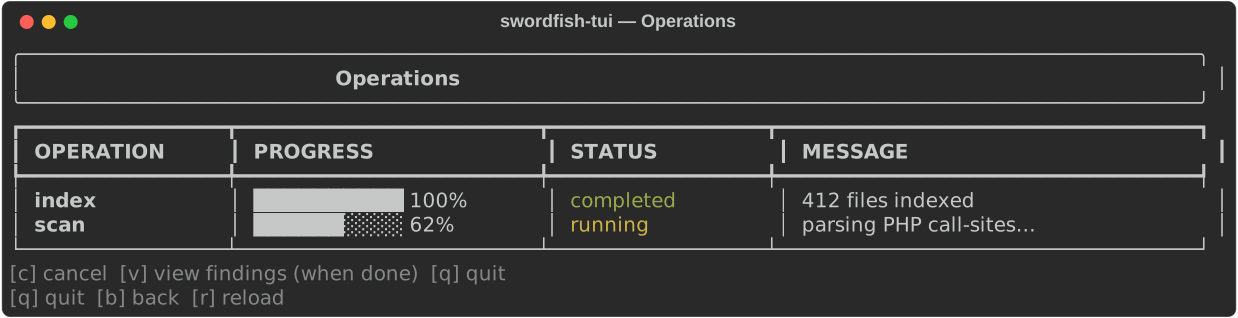
Indexing and scanning run in the background; this screen is the live status board, polling every few seconds. This is the part people want to skip — don’t. Watching it parse call-sites is the first hint of how much SQL is hiding in the application layer versus the schema.
What you see: the index task finished (412 files indexed); the scan task is running at 62%, currently chewing through PHP call-sites.
| Key | Action |
|---|---|
c | Cancel the first active task |
v | Jump to Findings once everything’s done |
r | Force a manual refresh |
q | Quit |
Let both tasks hit completed, then press v — or just wait, since the screen advances on its own when the work is done.
Step 5 — Findings: Group View
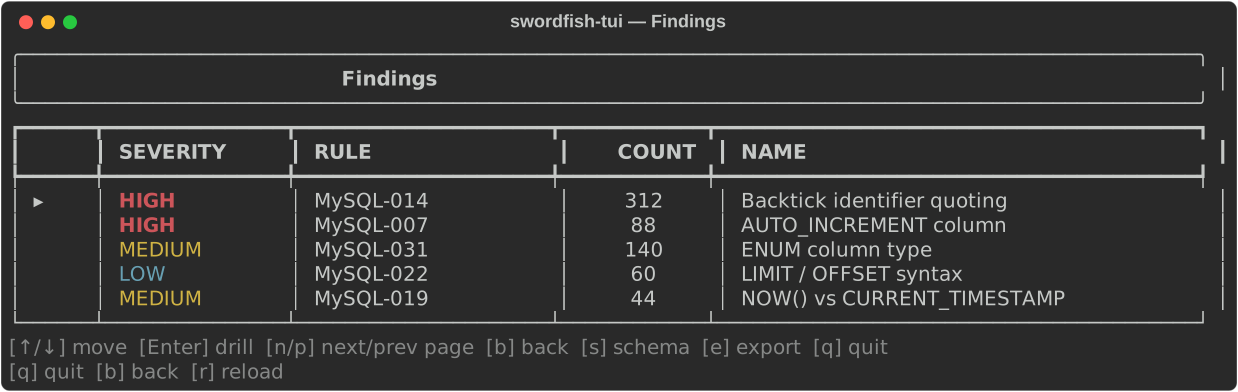
Here’s where it pays off. Findings open in groups mode: every rule that fired, with its severity and a count. A flat list of 1,204 findings is a wall of red nobody reads. Grouped, it’s a to-do list.
What you see: five groups for the sakila-shop scan — 312 high-severity backtick-quoting issues, 88 AUTO_INCREMENT columns, 140 ENUM columns, 60 LIMIT/OFFSET patterns, and 44 NOW() usages.
| Key | Action |
|---|---|
↑ / ↓ | Move between groups |
Enter | Drill into a group (its individual findings) |
s | Jump to Schema view |
e | Jump to Reports / export |
b | Go back |
q | Quit |
That backtick group is 312 of your 1,204 findings — a quarter of the work, one rule. Press Enter on MySQL-014 — Backtick identifier quoting to see the actual occurrences.
Step 6 — Findings: Detail View
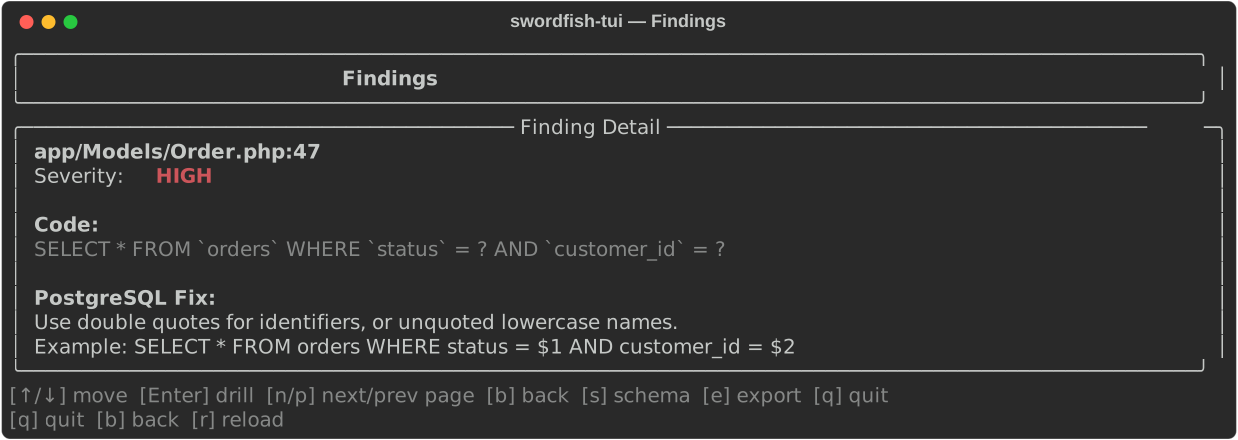
Enter once gives you list mode (every finding in the group). Enter again opens the detail panel for the one under the cursor: the code in context, plus the recommended Postgres fix.
What you see: finding f1 in app/Models/Order.php, line 47. A backtick-quoted query, and the fix: swap backticks for double quotes, or just drop them and use lowercase identifiers.
| Key | Action |
|---|---|
b / Esc | Detail → list, or list → groups |
↑ / ↓ | Move in list view |
n / p | Next / previous page |
Enter | Open detail for the selected finding |
This is the loop you’ll live in during the real work: read the context, confirm the fix makes sense, move on. Press b to back out to the list, then b again for the groups.
Step 7 — Schema View
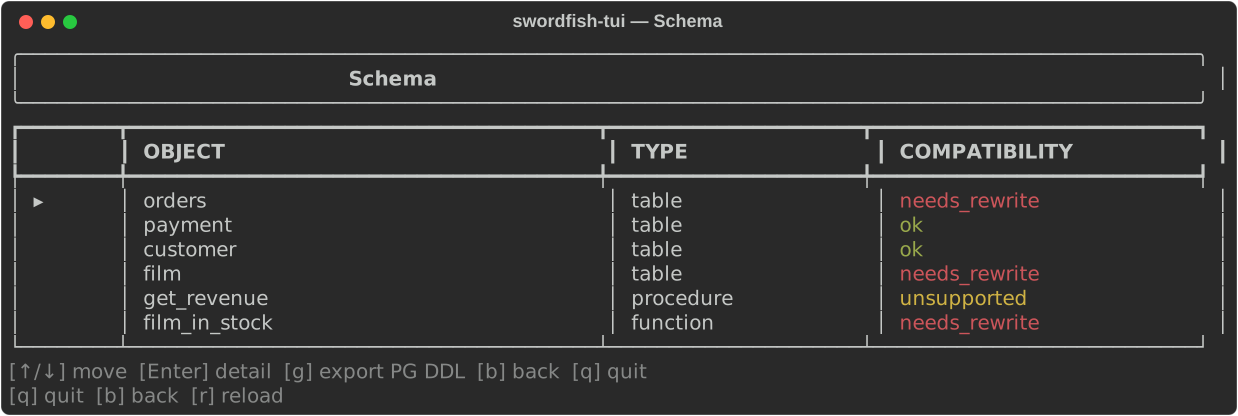
Press s from the groups view for the Schema screen — every object pulled from the dump or a live connection, color-coded by how cleanly it ports.
What you see: six Sakila objects. orders and film need rewriting (AUTO_INCREMENT → SERIAL/identity, ENUM → text plus a check constraint). payment and customer come over as-is. The get_revenue stored procedure is flagged unsupported — that one’s a manual rewrite, and pretending otherwise is how migrations corrupt data in week three.
| Key | Action |
|---|---|
↑ / ↓ | Move between objects |
Enter | Open the detail panel for an object |
g | Export PostgreSQL DDL to <project_id>_pg.sql |
b | Go back |
q | Quit |
Press g to drop a PostgreSQL DDL scaffold to disk. It’s not a finished schema. It’s a runnable starting point you tighten by hand.
Step 8 — Reports
b then e from Findings opens the Reports screen and its three export artifacts.
What you see: Findings CSV, Findings JSON, and an LLM-generated migration guide (that last one needs an LLM enabled in Settings).
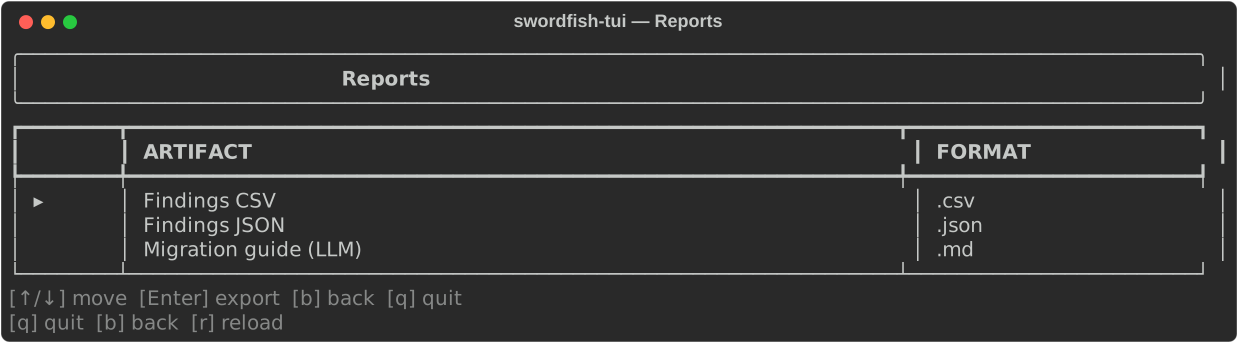
| Key | Action |
|---|---|
↑ / ↓ | Move the cursor |
Enter | Export the selected artifact to the cwd |
b | Go back |
q | Quit |
Pick Findings CSV and Enter to write p1_findings.csv — the spreadsheet you’ll hand a project manager. Migration guide (LLM) writes a Markdown remediation plan, but only when LLM_ENABLED=true is set in your .env.
What happens next
You’ve got the map. Now the work, in the order I’d actually do it:
- Kill the high-frequency, low-risk stuff first. Backtick quoting (MySQL-014) is 312 findings and a near-mechanical fix. A careful search-and-replace clears most of it, and the finding count drops in a hurry.
- Hand-port the things marked unsupported.
get_revenuewon’t convert itself. Open its detail in the Schema view, read the definition, rewrite it as a PL/pgSQL function, and test it against real numbers. - Use the DDL export as a draft, not an answer. That
*_pg.sqlscaffold gets you a schema to load on a local Postgres; treat the first run as the start of the conversation, not the end. - Re-scan. Apply the fixes, hit
ron the dashboard, and watch the counts fall toward zero. That number going down is the only progress bar a migration actually has.
Everything here maps one-to-one to the web UI — Operations, Findings, Schema, and Reports are the same four tabs on the ProjectDetail page. Same assessment, same data, pick the interface that fits where you work.
Want to run it against your own code instead of the sample? Swap the samples tab for path or git in Step 3 and point it at the repo you’re actually scared of. That’s the one worth assessing.